Chats Overview
The Chats tab is where you interact with your graph using natural language.
You can ask questions, explore answers, and inspect exactly what data the system used to generate those answers.
Last updated: April 4, 2026
Prerequisites
Before using Chats, make sure the following are set up:
- You have an existing knowledge graph or a set of uploaded documents
- Your API key or local model connection is configured correctly
Chats rely on retrieval. If there is no data available, the system cannot retrieve anything.
If your question is not related to the contents of your graph, there may be no retrieval results, and the response will fall back to a no-context answer.
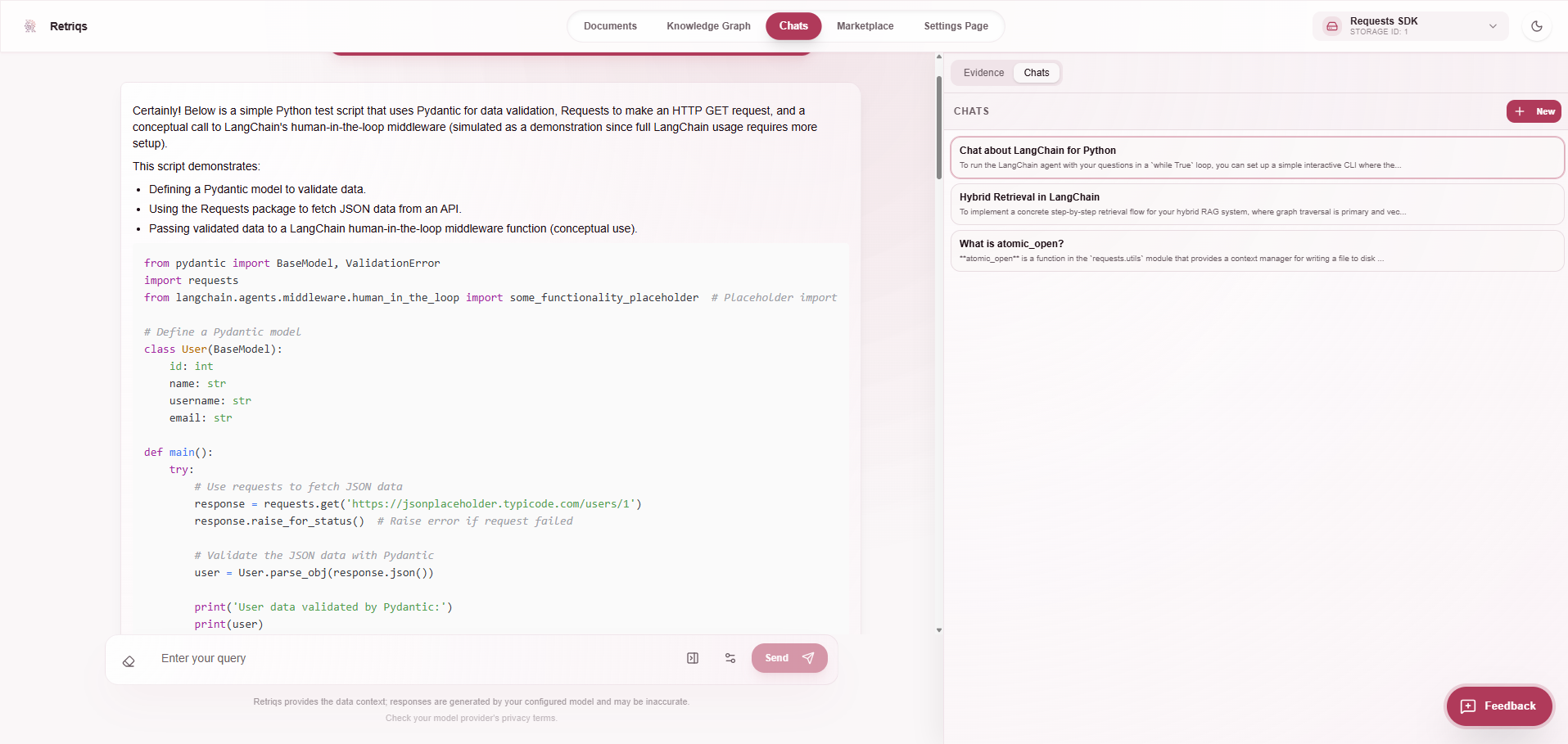
Creating and using chats
Chats work similarly to other chat-based interfaces.
- Click New to start a new chat
- Enter a question in the input field
- Press Send to get a response
Each chat is saved, so you can return to previous conversations at any time.
You can also click on any earlier message in a chat to revisit that step and see how the system responded.
Typical workflow
A common workflow looks like this:
- Ask a question
- Review the answer
- Open the Evidence tab to inspect retrieved data
- Adjust settings if needed
- Ask a follow-up question
Over time, this helps you better understand how your graph behaves and how to get the best results from it.
Notes
- Each message triggers a new retrieval step
- Evidence is always tied to a specific message
- Switching between messages updates the Evidence view
- Chats are persistent and can be revisited later