Import Knowledge Graph
This guide explains how to import a knowledge graph into Retriqs. You can either create a new storage or merge the data into an existing one.
Last updated: April 4, 2026
Prerequisites
- You have an exported storage archive (.zip file)
- You have access to the Retriqs application
{video}
Import Methods
There are two ways to import a knowledge graph:
- Create New Storage
- Merge Into Existing Storage
1. Create New Storage
This is the most common method and is typically used when starting fresh.
Steps
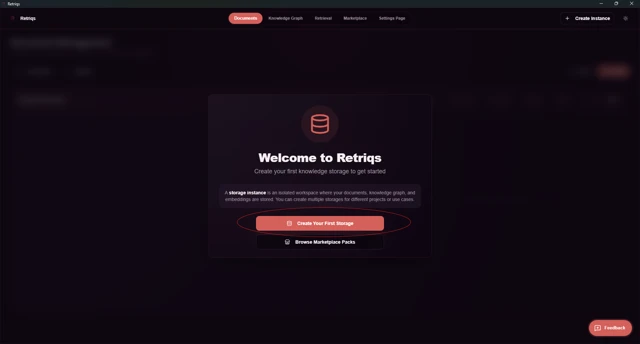
- Open the Retriqs application.
-
On the welcome screen, click Create New Storage.
-
In the popup window, go to the Import Archive tab.
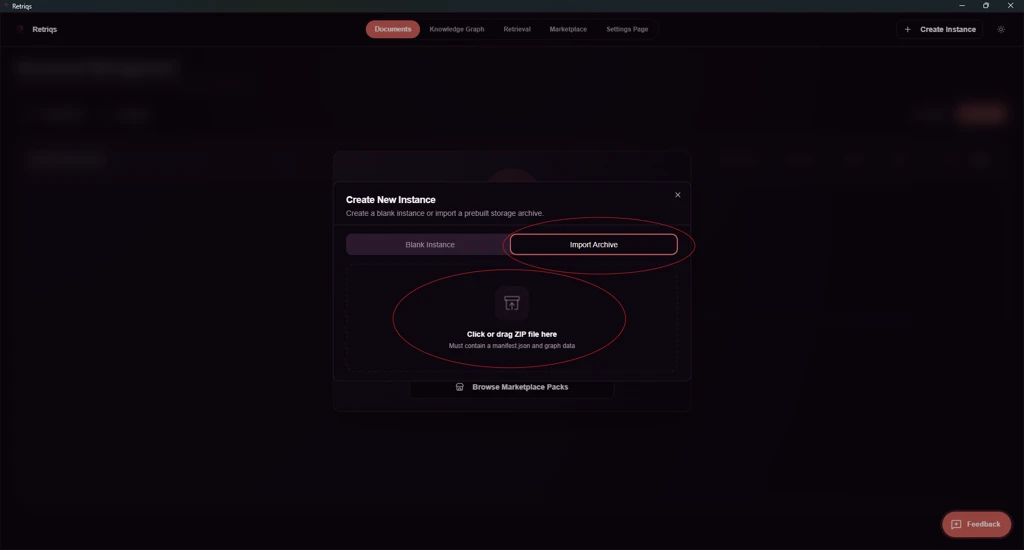
- Upload your archive by:
- Clicking to open the file selector, or
- Dragging and dropping the
.zipfile
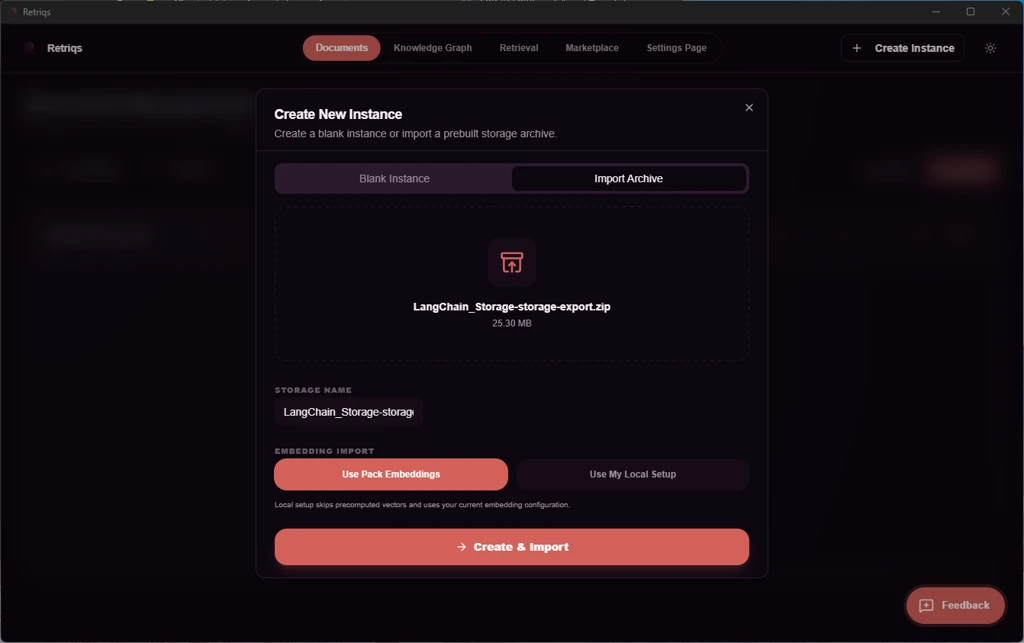
Embedding Options
You will be prompted to choose how embeddings are handled:
-
Use Pack Embeddings (default)
Uses pre-indexed embeddings included in the archive. -
Custom Embedding Model
Reprocess the data using your own embedding model.
Final Steps
- Click Create & Import
If you selected Use Pack Embeddings, your graph is ready to use immediately.
If you selected Custom Embedding Model, an additional step is required:
- Go to the Documents page.
- Click Start Re-embedding to generate embeddings for your data.
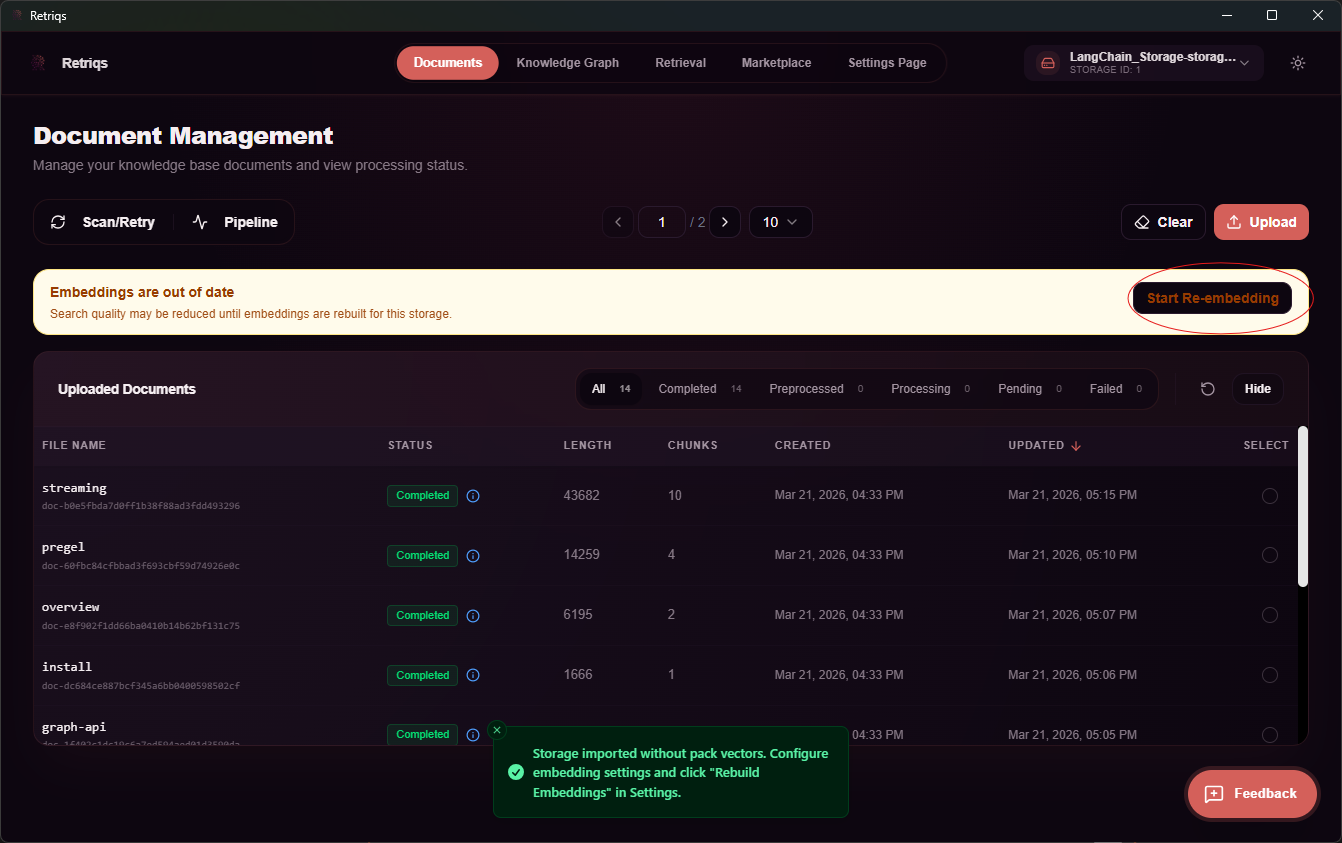
Once re-embedding is complete, your graph will be fully ready for querying.
You can now chat with and ask questions about your knowledge graph.
2. Merge Into Existing Storage
Use this method when you want to add data to an existing graph.
Steps
- Open the Retriqs application.
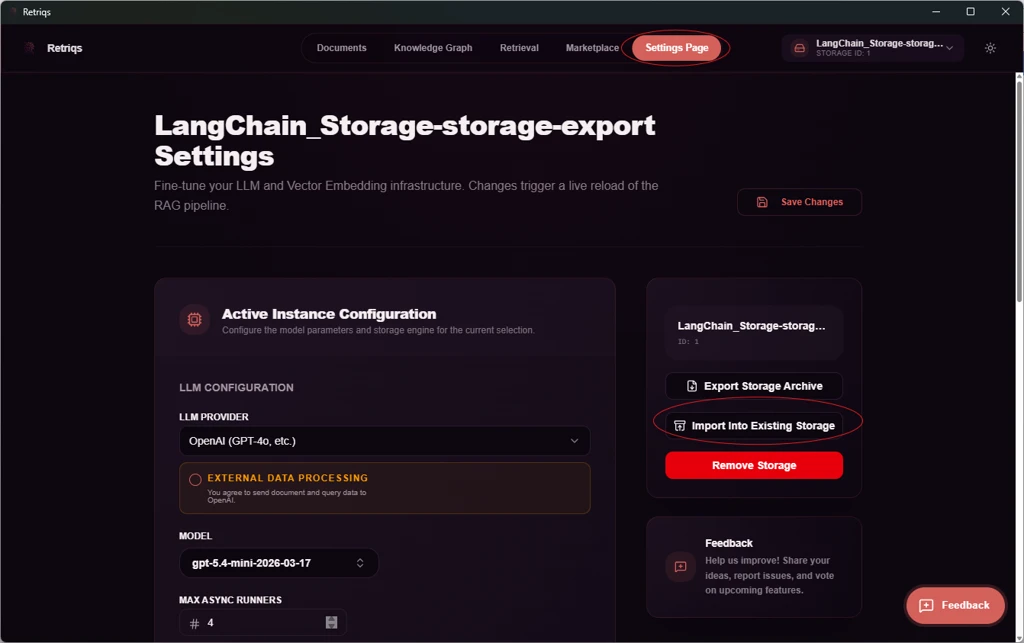
- Navigate to the Settings page.
-
Click Import Into Existing Storage.
-
Upload your archive file:
- Use the file selector, or
- Drag and drop the
.zipfile
-
Click Analyze Merge
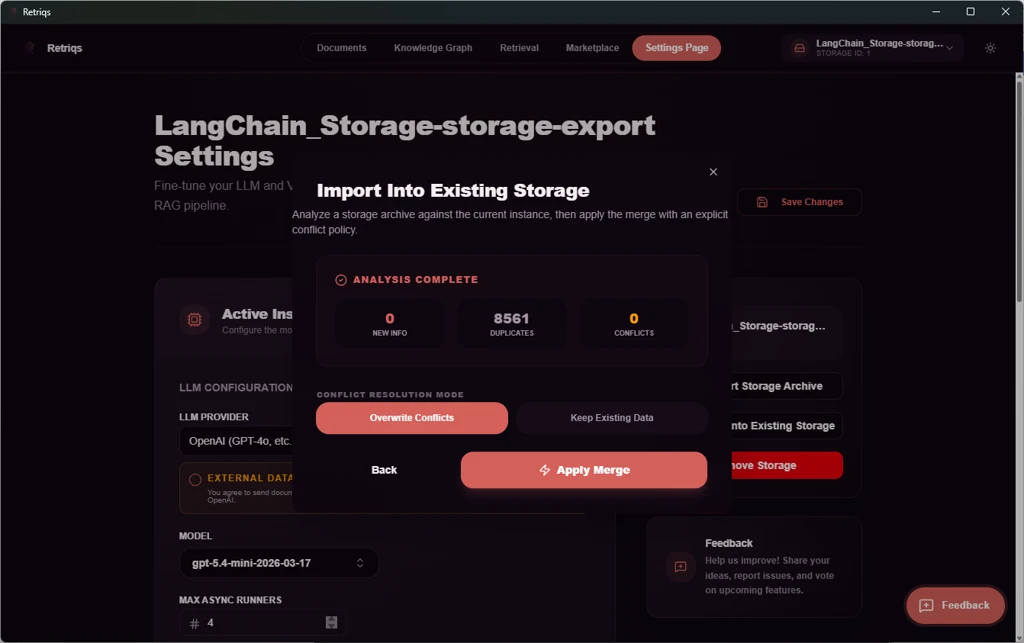
Merge Analysis
The system will evaluate whether the merge is possible and show:
- New data to be added
- Duplicate entries
- Conflicts between datasets
Conflict Handling Options
-
Overwrite Conflicts
Replace existing data with the new data -
Keep Existing Data
Skip conflicting items and keep current data
Non-conflicting data will always be merged.
Import Failures
If the embedding model or provider does not match, the merge will fail.
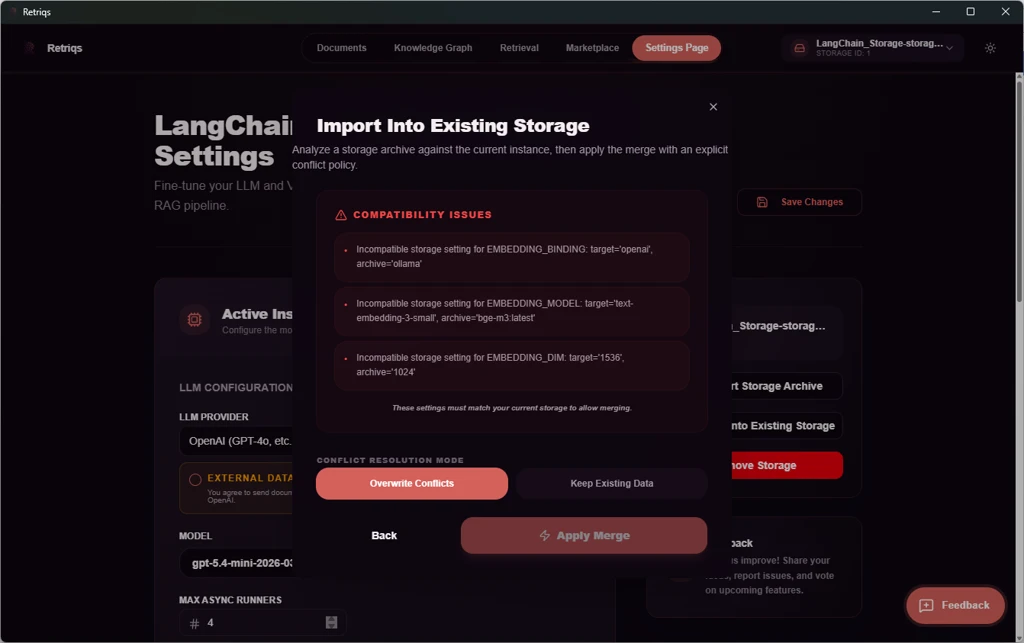
An error screen will explain why the merge could not be completed.
Related Pages
After importing, you can: